


Why It’s So Difficult to Track Changes in PowerPoint in a Corporate Setting
Anyone who regularly works with presentations at their company is familiar with this situation: A file exists in multiple versions on different drives, in email attachments, and on personal desktops. It’s almost impossible to tell which version is the most current. Tracking changes in PowerPoint turns into time-consuming detective work that wastes valuable work time and, in the worst case, results in outdated content being sent to the client.
What PowerPoint Can Do on Its Own in Terms of Change Management—and Where Its Limits Lie
PowerPoint offers several tools designed to help you keep track of changes. The version history in PowerPoint, which is provided through Microsoft 365 or SharePoint, automatically saves previous versions of the file and allows you to restore a previous state. The “Compare Documents” feature lets you display two versions of a file side by side and highlight the differences. Comments in PowerPoint facilitate coordination among stakeholders: With “Insert PowerPoint Comment,” you can attach notes directly to slides, and “View PowerPoint Comments” displays all pending feedback in one place.
These features are certainly useful for small teams and individual files. However, they reach clear limitations as soon as presentations are used across departments, go through regular approval cycles, or must meet compliance requirements in regulated industries.
Version History in PowerPoint: What It Can and Can’t Do
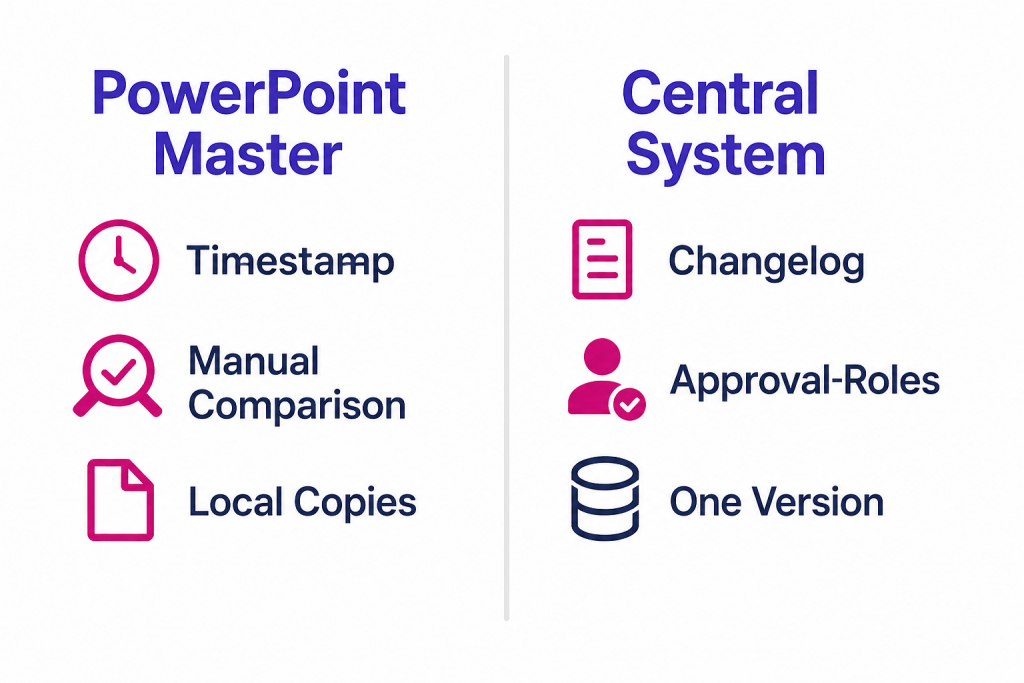
The version history in PowerPoint records when a file was saved, but not exactly which content changes were made or by whom. Without additional documentation, it remains unclear who changed a particular slide and why. A sales representative who wants to check shortly before a client meeting whether the product slide still reflects the current figures will find a series of timestamps in the version history, but no information about what changed between Version 3 and Version 7.
Comparing Documents in PowerPoint: Useful, but Manual
The document comparison feature in PowerPoint highlights differences between two files and is particularly useful when external partners or departments submit revisions. However, it only works reliably if the user already knows which two versions they want to compare. In an environment with multiple concurrent editing versions, copies stored in different locations, and a lack of a consistent naming convention, document comparison can quickly lead to confusion rather than clarity.
Where the real problem lies: a lack of governance, not a lack of features
The core problem with tracking changes in PowerPoint is not technical, but organizational. Most companies have tools for comparing and commenting on documents, but they lack a binding system that specifies who is authorized to approve a presentation, which version is considered the official one, and how to ensure that all stakeholders access only that version.
Here’s a typical example: The marketing team revises the standard presentation for the sales force. The new version is distributed via email. Some sales representatives save it locally and customize it, while others are still working with the old version. The next time the company’s color scheme is updated, these individual copies will have to be located and adjusted manually—assuming anyone even knows they exist.
In regulated industries such as banking and insurance, this problem becomes significantly more acute. In these sectors, it’s not just about timeliness, but also about traceability: Which version was approved by whom and when, and which version did the sales representative actually use during the customer meeting? Without reliable document versioning, this question cannot be answered, which—under regulatory frameworks such as MiFID II or the requirements of the German Federal Financial Supervisory Authority (BaFin)—poses a genuine compliance risk.
What a Centralized Presentation Management System Does
A modern presentation management system addresses the issue of versioning structurally—not by improving the handling of individual files, but through a different paradigm: there is always only one valid, centrally stored, and approved version. Changes take effect not through the exchange of files, but through controlled updates to the central source. All users access the same baseline; the system prevents any discrepancies.
This approach combines several elements that, together, provide the necessary security: a transparent changelog that makes changes traceable; clear roles and access rights that determine who is authorized to edit, approve, or view content; and automated processes that ensure updates take effect immediately and in full for all authorized users.
For teams that want to structure the entire lifecycle of a presentation—from creation through approval to use—this article on efficient document management using an intelligent content hub provides a good overview of the requirements for such a system.
Approval Processes and Roles: What a Robust Versioning Strategy Needs
A robust document versioning system consists of several layers. At the content level, changes must be documented and assigned to a responsible person. At the process level, defined approval steps are required before a new version becomes visible to users. At the access level, it must be ensured that only authorized users can view or edit specific content, while other users have access only to approved versions. The so-called “need-to-know” principle is a proven tool for maintaining order in this context.
With an intelligent presentation management hub like Leanr, these three levels can be mapped within a single system without the need for additional manual coordination steps.
Corporate Identity Redesign: When Versioning Meets the Entire Brand Identity Landscape
A particularly challenging scenario for document versioning is a company-wide change in corporate identity. When logos, colors, or fonts change, it may be necessary to update dozens or even hundreds of existing presentations. In a manual process, this means searching for files, opening them, making adjustments, reviewing them, distributing them, and hoping that no copy was overlooked.
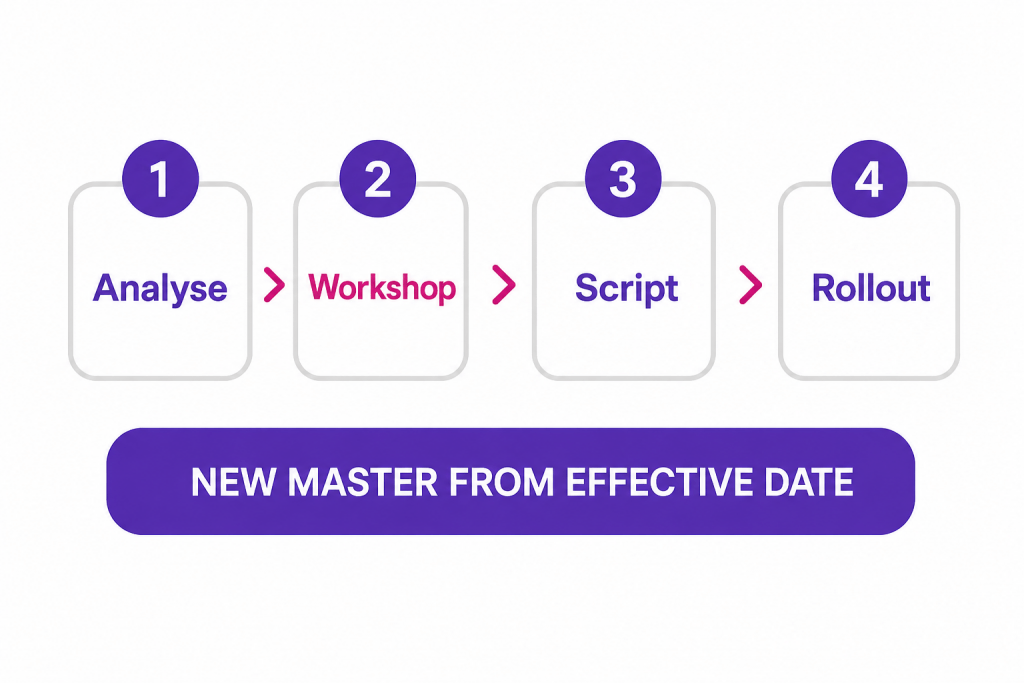
A modern presentation management system handles this process in a structured manner. Leanr, for example, offers an automated script update as part of its project services: Existing presentations are analyzed, standardized against a new master template, and all modular elements are retained in the process. The process follows fixed steps, from requirements gathering through a test run with quality assurance to a two-version comparison and the final rollout. As of a defined cutoff date, only the new master version applies, with a transparent approval process and directly side-by-side versions for review.
This approach makes it clear why tracking changes in PowerPoint at the enterprise level is not a matter of individual features, but rather a matter of system architecture.
Compliance Requirements and Version Control in Regulated Industries
In industries with strict regulatory requirements, comprehensive document versioning is not a convenience feature, but a legal necessity. In case of doubt, it must be possible to provide a reliable answer to the question of whether a presentation complied with applicable regulations at the time of a client meeting.
A centralized system with a changelog and access log provides exactly this traceability. Not only does it ensure that sales representatives always use the most recent approved version, but it also documents when each version was approved and who had access to it. This approach goes well beyond what the version history in PowerPoint or manual storage on a shared drive can achieve.
The article on compliance-compliant sales presentations, using regulated industries as an example, demonstrates how compliance requirements and sales flexibility can be effectively combined.
As an intelligent presentation management hub, Leanr combines robust versioning, a transparent changelog, role-based access rights, and automated updates in a single application. This not only gives companies control over which version of their presentations is in use, but also allows them to verify this status at any time. The ROI calculator can be used to determine the exact potential savings achieved through structured presentation management.
Conclusion
Tracking PowerPoint changes using built-in tools—such as version history, the comment feature, and document comparison—meets the needs of small teams working with individual files. For companies that use presentations across departments, go through regular approval processes, and must provide proof of compliance, this approach is insufficient. In such cases, a structured version control system is necessary to rigorously regulate approval processes, access rights, and change documentation. Establishing this foundation not only reduces sources of error in field operations but also restores the control that is essential for legally compliant communication in regulated industries.
If you’d like to see what centralized presentation management could look like in your company, please feel free to schedule a demo.
Frequently Asked Questions (FAQ)
Can I use PowerPoint’s built-in features to track who made which changes? The version history in PowerPoint via Microsoft 365 records when a file was saved and from which account. However, it does not readily show exactly which content changes were made or why. A dedicated presentation management system is required for reliable change tracking at the enterprise level.
What is the difference between the version history in PowerPoint and professional document versioning? PowerPoint’s version history automatically saves file states and allows you to revert to a previous version. Professional document versioning goes a step further: It controls who is authorized to approve a new version, makes changes traceable in the changelog, and ensures that all users access only the approved version. This is particularly crucial in regulated industries.
How does the “Compare Documents” feature help with quality assurance for presentations? The document comparison feature in PowerPoint visually highlights the differences in slide content between two file versions. This is useful for approving external revisions. However, the feature requires that the correct two versions be identified and available. In environments without a central repository and clear naming conventions, this is often not guaranteed.
What role do comments in PowerPoint play in the approval process? Comments in PowerPoint allow you to attach feedback directly to slides, helping to structure the review process. However, they do not replace a formal approval process, as they neither generate binding status documentation nor ensure that no further changes will be made after approval. Binding approvals require system-level roles and workflows.
How should companies handle corporate identity changes when many presentations are affected? A company-wide CI change requires a structured approach: an inventory of all affected presentations, a clear definition of the new master template, automated updates to existing files, and a defined effective date after which only the new version will be used. Without centralized management, there is a risk that individual copies on old drives will continue to be used, undermining brand consistency.